WordPress Makes Great Websites, and Hides SEO Problems Perfectly
WordPress powers over 40% of the web. It is the default choice for businesses, bloggers, agencies, and e-commerce stores. It is also the platform with the most built-in ways to accidentally destroy your SEO without any visible error.
A checkbox in Settings removes your entire site from Google's index. Two plugins create conflicting meta output that Google silently ignores. A page builder generates CSS so heavy the site fails Core Web Vitals on every mobile device. WordPress taxonomy archives create hundreds of duplicate content URLs that dilute your ranking signals site-wide. A missing sitemap means Google discovers your pages by following links, far slower and less reliable than a direct sitemap submission.
None of these problems produce an error message. The website looks and functions perfectly. Traffic simply never arrives at the level it should, and without an audit, the cause remains invisible indefinitely.
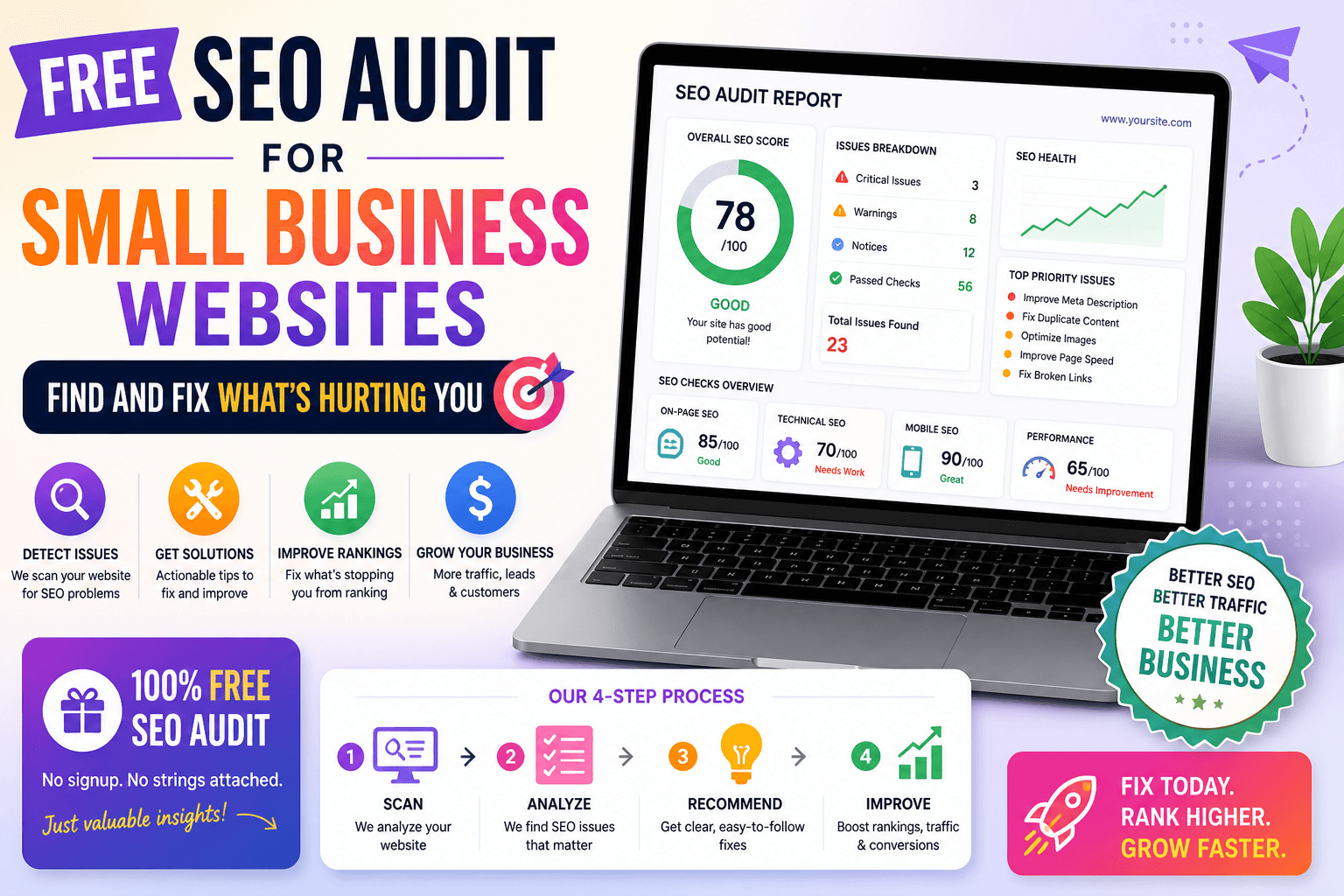
The free SEO audit tool for WordPress websites checks 18 on-page and technical factors on any public WordPress URL in under 10 seconds. No account required.
8 WordPress SEO Problems That Suppress Your Rankings
#1, The WordPress Noindex Trap, Critical Impact
Under Settings → Reading, WordPress has a checkbox: 'Discourage search engines from indexing this site.' Left active after launch, it adds a noindex directive to every page, silently removing your entire site from Google's index. This is the first thing to check on any WordPress site with no organic traffic. Run a free SEO audit on your homepage and check the robots meta output immediately.
#2, Two SEO Plugins Creating Duplicate Meta Output, High Impact
Installing both Yoast SEO and RankMath simultaneously, or using a theme that generates its own title tags alongside an SEO plugin, creates duplicate title tags and competing meta descriptions in the HTML head. Google may ignore both and auto-generate poor-quality snippets instead. Your WordPress site must have exactly one active SEO plugin with no conflicting theme-level meta generation.
#3, Auto-Generated or Blank Title Tags and Meta Descriptions, High Impact
WordPress themes auto-generate title tags from the page title alone, producing outputs like 'Contact | Site Name' with no keyword. Most sites also have blank meta descriptions across every page because the SEO plugin was installed but never configured. Every page needs a manually written, keyword-focused title tag under 60 characters and a unique, compelling meta description of 150–160 characters.
#4, Page Builder Themes Failing Core Web Vitals, High Impact
Elementor, Divi, and WPBakery generate heavy JavaScript and CSS that consistently fail Google's Core Web Vitals thresholds on mobile. Pages loading in over 3 seconds rank below faster competitors with equivalent content. Many WordPress sites run 30+ plugins, each adding render-blocking scripts that increase Time to First Byte and suppress rankings without producing a single visible error.
#5, Duplicate Content from WordPress Archives and Taxonomies, Medium Impact
WordPress automatically creates archive pages for every category, tag, author, date, and custom taxonomy. Each aggregates your post content, producing multiple URLs with overlapping content. Google may classify this as site-wide duplicate content and reduce the ranking authority of your original posts. Category, tag, and author archives should be noindexed via your SEO plugin's settings.
#6, WooCommerce Product Variation and Navigation Duplicate URLs, Medium Impact
A WooCommerce product with three sizes and four colors creates twelve thin variation URLs by default. Faceted navigation generates hundreds of additional dynamic URLs. Google wastes crawl budget on these pages and may classify the entire store as thin-content. Canonical tags pointing all variation URLs to the main product page URL resolve this.
#7, Missing XML Sitemap or Sitemap Not Submitted to Search Console, Medium Impact
WordPress does not generate an XML sitemap by default. Yoast SEO and RankMath both generate sitemaps, but they must be submitted to Google Search Console to be effective. Without a submitted sitemap, Google discovers your pages by following links, which is significantly slower for larger sites. Use the sitemap generator if needed.
#8, Broken Redirect Chains from Plugin and Theme Switches, Medium Impact
Every time you switch your permalink structure, change your domain, or swap SEO plugins, there is a risk of creating redirect chains where URL A redirects to URL B, which redirects to URL C. Each hop in the chain loses link equity and slows page load. WordPress does not automatically clean up old redirects, so they accumulate over time.
How to Fix WordPress SEO Issues, Step by Step
Step 1, Run a Free WordPress SEO Audit Paste your WordPress homepage URL into the free SEO audit tool. The report immediately shows whether a noindex directive is active, title tags are missing or auto-generated, canonical URLs are absent, HTTPS has issues, or structured data is missing.
Step 2, Check and Disable the Noindex Setting Go to WordPress Settings → Reading. Confirm 'Discourage search engines from indexing this site' is unchecked. If it was checked, uncheck it, save, then submit a recrawl request for your homepage through Google Search Console. This single fix can restore a completely de-indexed site.
Step 3, Use One SEO Plugin and Configure It Properly Choose either Yoast SEO or RankMath. Deactivate and delete the other. In the active plugin's settings, verify: title tag templates are keyword-focused (not post title + site name), meta description templates are set, and all taxonomy archives (categories, tags, author, dates) are set to noindex.
Step 4, Fix Your Permalink Structure and Submit Your Sitemap Go to Settings → Permalinks and select 'Post Name' for clean keyword-rich URLs. Then open your SEO plugin, find the sitemap URL it generates, copy it, and submit it to Google Search Console under the Sitemaps section.
Step 5, Optimize Images and Reduce Plugin Count Compress all images in your media library. Add descriptive alt attributes to every image. Audit your installed plugins and deactivate any that are inactive or redundant, every plugin adds HTTP requests and render-blocking scripts that hurt Core Web Vitals scores.
Step 6, Fix Canonical Tags on Product and Archive Pages For WooCommerce: set canonical tags from all product variation URLs pointing to the main product page. Noindex all faceted navigation filter URLs via your SEO plugin. For regular WordPress: set self-referencing canonical tags on all posts and pages. Verify with the free SEO audit after making changes.
The Complete WordPress SEO Audit Checklist
- Settings → Reading: 'Discourage search engines from indexing this site' is unchecked
- Exactly one SEO plugin is active, Yoast SEO OR RankMath, not both
- Permalink structure is set to 'Post Name' under Settings → Permalinks
- XML sitemap is generated and submitted to Google Search Console with no errors
- All category, tag, author, and date archives are set to noindex in the SEO plugin
- Title tags are manually written for all important pages, not auto-generated from post title
- Meta descriptions are written for all important pages (150–160 characters each)
- Canonical tags are configured correctly on all pages, posts, and products
- HTTPS is active with no mixed content errors
- All images are compressed and have descriptive alt attributes
- Page speed passes Core Web Vitals, Largest Contentful Paint under 2.5s on mobile
- For WooCommerce: all product variation URLs have canonical tags pointing to the main product
- robots.txt is correctly configured, not blocking /wp-content/ or JavaScript/CSS files
- No redirect chains longer than 1 hop, all 301 redirects go directly to the final destination
How WordPress Generates Title Tags, and Why It Often Gets Them Wrong
In a default WordPress installation without an SEO plugin, the active theme generates title tags from a template combining the page title and site name: "Contact | Business Name." This gives Google no keyword signal. When you install Yoast SEO or RankMath, the plugin overrides the theme's output and lets you write custom keyword-focused title tags. The problem occurs when the theme still outputs its own title tag alongside the plugin, or when the plugin is installed but never configured.
Run a free WordPress SEO audit on your homepage. The report shows the exact title tag in your page's HTML, not what your SEO plugin displays in its dashboard, but what Google actually receives. Then use the free meta tags generator to build an optimized title tag and meta description in seconds.
WordPress Duplicate Content: Archives, Taxonomies, and WooCommerce
Every WordPress site generates duplicate content by default through its taxonomy system. When you publish a post in the "SEO Tips" category, WordPress creates: the post URL itself, a category archive page, a tag archive page for every tag applied, a date archive page, and an author archive page. That is five URLs containing essentially the same content, the post.
The fix: in your SEO plugin's settings, set category archives, tag archives, author archives, and date archives to noindex. For WooCommerce, set canonical tags from all variation URLs to the main product page and noindex all faceted navigation URLs. After configuration, run the free SEO audit on your top product pages to verify canonical tags are correctly configured.
WordPress SEO Audit Scenarios
WordPress Business or Agency Website
Scenario: A local law firm's WordPress site is built with Elementor. The theme generates its own title tags alongside Yoast SEO, creating duplicate meta output. Core Web Vitals are failing on mobile due to CSS bloat. Category archive pages duplicate service descriptions across multiple URLs.
Fix: Run the free SEO audit to detect duplicate meta conflicts and canonical issues. Deactivate one SEO plugin. Configure keyword-focused title templates. Add WP Rocket for caching and JavaScript deferral. Noindex all taxonomy archives.
WordPress Blog or Content Site
Scenario: A blogger with 90 posts gets almost no organic traffic. Posts target competitive head keywords, average 350 words, and WordPress automatically created category, tag, and date archive pages that duplicate the same post excerpts across hundreds of thin URLs.
Fix: Set all taxonomy archives to noindex immediately. Audit the 10 most important posts with the free SEO tool. Rewrite them to 1,000+ words targeting more specific long-tail queries. Use the keyword density checker to verify keyword frequency.
WooCommerce Online Store
Scenario: An online retailer with 300 products has thousands of product variation URLs and faceted navigation filter pages. The entire site's crawl budget is wasted on these low-value derivative pages instead of the revenue-generating product and category pages.
Fix: Add canonical tags from all product variation URLs to the main product page. Noindex all faceted navigation filter URLs. Run regular SEO audits on the top 20 revenue product pages. Submit the products sitemap separately in Google Search Console.
Free Tools to Fix Your WordPress SEO Issues Today
- SEO Audit Tool, check any WordPress page for 18 SEO factors
- Meta Tags Generator, build keyword-focused title & description tags
- Keyword Density Checker, verify keyword frequency before publishing
- XML Sitemap Generator, build and submit a sitemap to Google
FAQ
Why is my WordPress website not showing up in Google search? The most likely cause is 'Discourage search engines from indexing this site' being checked under Settings → Reading, this adds a noindex directive to every WordPress page and removes the site from Google's index completely. Check this first. Other common causes: a misconfigured robots.txt blocking Googlebot, crawl errors from broken plugins, or an XML sitemap that has never been submitted to Google Search Console. Run a free SEO audit on your homepage, it detects noindex directives, missing canonical tags, and other indexation problems instantly.
Should I use Yoast SEO or RankMath on my WordPress site? Either plugin works well, the critical point is using only one. Having both Yoast SEO and RankMath active simultaneously creates duplicate meta tags in the HTML head that Google may ignore. Choose one based on preference, deactivate and delete the other, and configure your chosen plugin with keyword-focused title tag templates, proper meta description templates, and taxonomy archive noindex settings.
How do I fix duplicate content on my WordPress site? WordPress duplicate content comes from two main sources: taxonomy archives (categories, tags, author pages, date archives) and WooCommerce variation URLs. For taxonomy archives: open your SEO plugin and set categories, tags, author archives, and date archives to noindex. For WooCommerce variations: set canonical tags from all variation URLs pointing to the main product page URL.
Why is my WordPress site slow and what can I do about it? WordPress speed problems typically come from: page builders (Elementor, Divi) loading excessive CSS and JavaScript, too many plugins adding render-blocking scripts, large uncompressed images, and no caching layer. Fixes: install WP Rocket or LiteSpeed Cache for caching and script deferral, compress all images using ShortPixel or Smush before uploading, use a CDN, and consider switching to a performance-focused theme like GeneratePress, Astra, or Kadence.
What is the WordPress noindex trap and how do I check for it? WordPress includes a setting under Settings → Reading labeled 'Discourage search engines from indexing this site.' When active, WordPress adds a noindex meta tag to every page on your site. This setting is meant for sites under development but is frequently left active after launch. Check it by going to Settings → Reading in your WordPress dashboard, or run a free SEO audit on your homepage and check the Robots Meta output in the report.
Does the free SEO audit tool work for WooCommerce product pages? Yes. The tool works on any public WooCommerce URL, product pages, category pages, and the shop homepage. For WooCommerce, the most important pages to audit are your top 10–20 revenue-driving product pages and your main shop and category pages. Common issues: auto-generated product title tags, no meta descriptions, missing canonical tags on variation URLs, and absent Product schema markup that enables rich results in Google search.