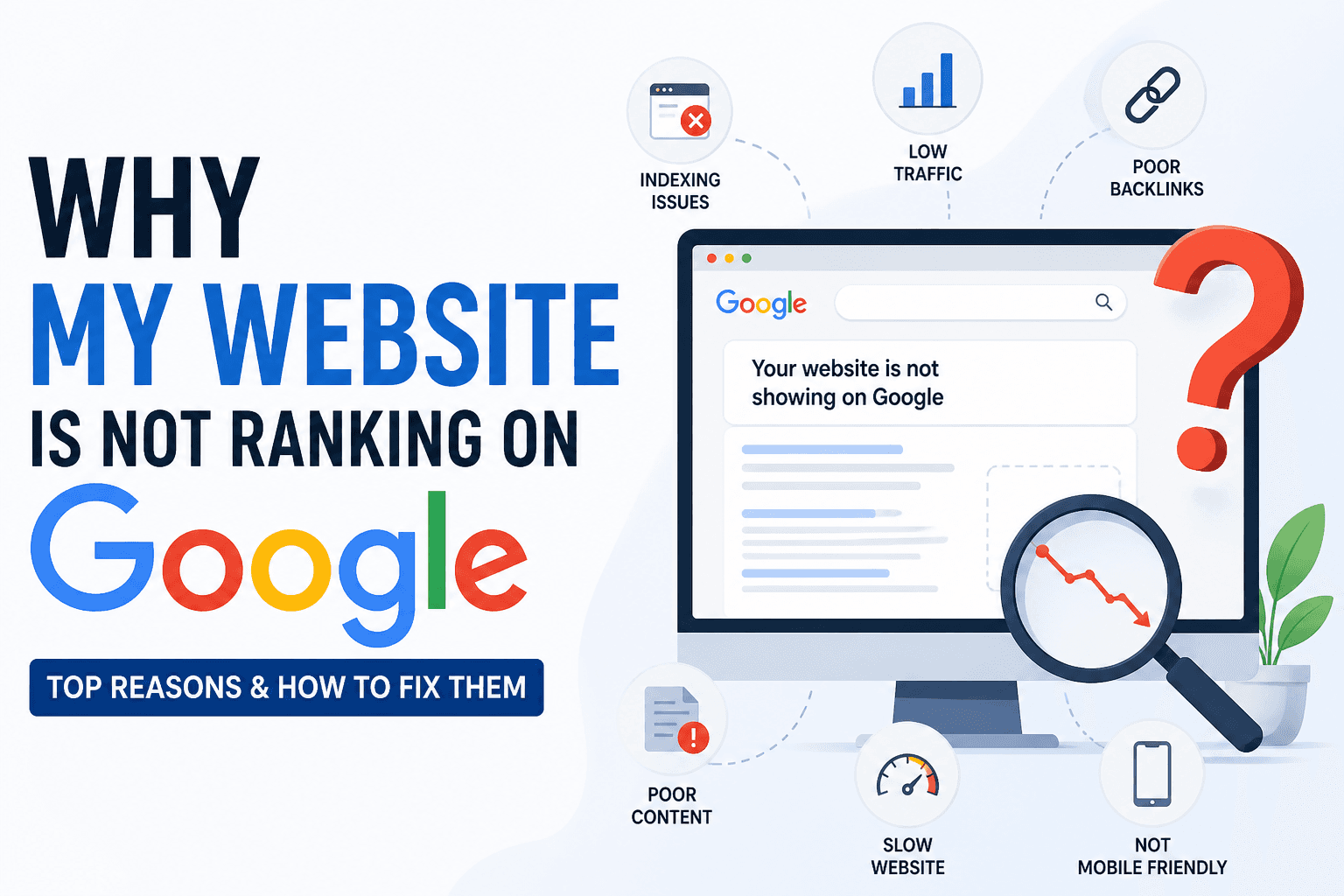
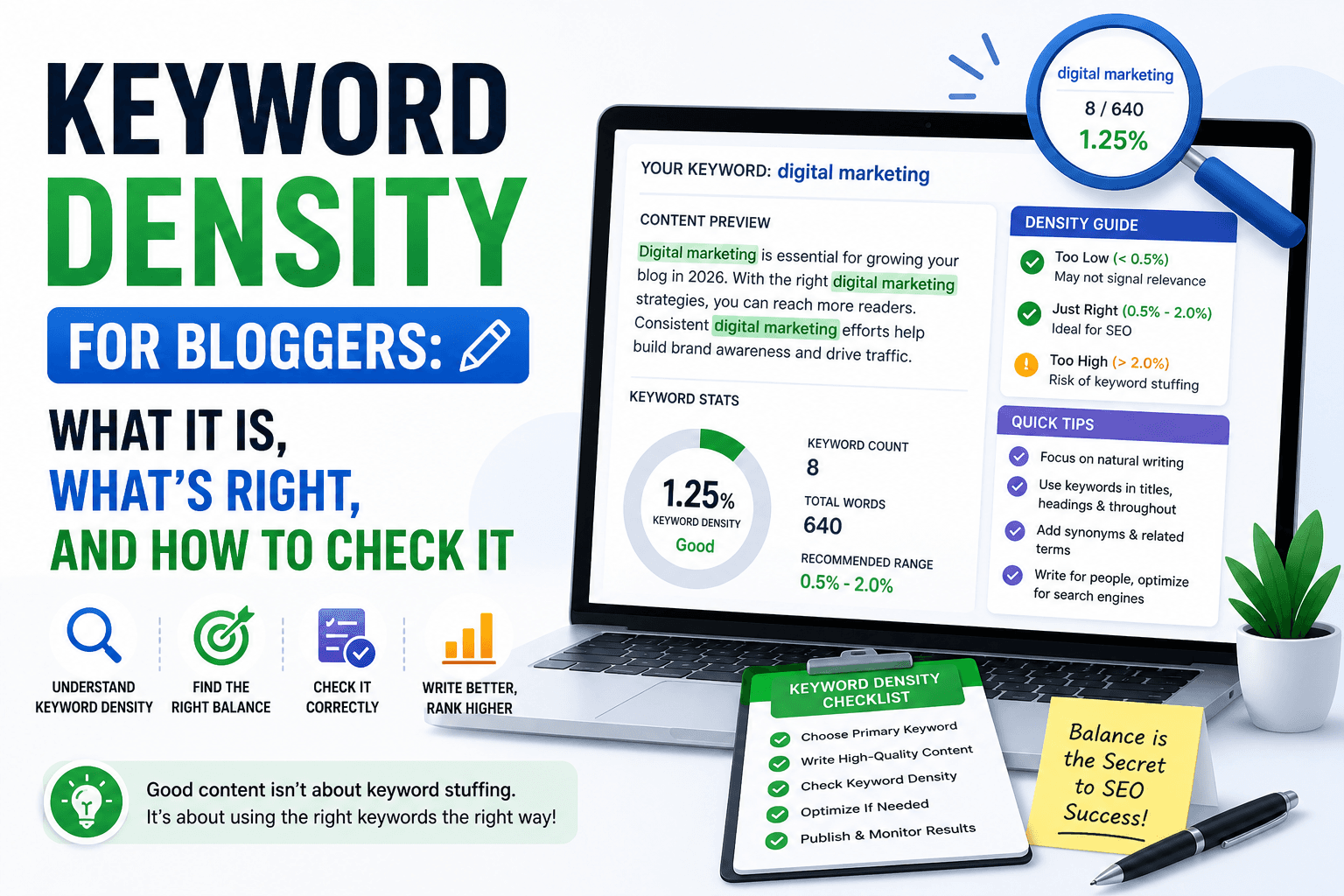
What Technical SEO Actually Is
Technical SEO is the layer of search engine optimization that deals with how search engines discover, crawl, and index your pages, before they evaluate content quality or keyword relevance. Without a solid technical foundation, the best-written, most keyword-optimized content on the internet can fail to rank simply because Google can't find or access it.
For beginners, technical SEO breaks into three practical areas: crawlability (can Google access your pages?), indexation (has Google decided to include your pages in its index?), and page experience (does the page serve users well technically?).
This guide focuses on the three technical files and configurations that every site needs to get right, robots.txt, XML sitemaps, and canonical tags, plus the checks that catch the most common technical issues before they suppress rankings.
Robots.txt: Who Can Crawl What
What It Is
The robots.txt file is a plain text file stored at your domain root (e.g., https://yourdomain.com/robots.txt). It tells search engine crawlers (Googlebot, Bingbot, and others) which parts of your site they're allowed to crawl and which to skip.
What It Controls
User-agent: *
Disallow: /admin/
Disallow: /checkout/
Allow: /
Sitemap: https://yourdomain.com/sitemap.xml
- User-agent, which bot the rule applies to.
*means all crawlers. - Disallow, paths the specified bot should not crawl.
- Allow, explicitly permit a path that would otherwise be blocked by a broader Disallow rule.
- Sitemap, declares where your sitemap file lives. Google reads this and uses it to find all your pages.
What Robots.txt Does NOT Do
Robots.txt controls crawling, not indexing. A page that is disallowed from crawling can still appear in Google's index if other pages link to it. To prevent indexing, use a noindex robots meta tag on the page itself, not a Disallow rule.
Robots.txt also isn't a security measure. Malicious bots ignore it entirely. Use server-level authentication for genuinely sensitive content.
Common Mistakes
Accidentally blocking your entire site:
User-agent: *
Disallow: /
This blocks Google from crawling everything. It's shockingly common on sites that started in staging with crawling disabled and launched without updating the robots.txt.
Blocking CSS and JavaScript: Modern Google renders JavaScript. If your robots.txt blocks Googlebot from accessing your CSS or JS files, Google can't render your pages correctly, which affects how it evaluates your content.
No sitemap declaration: The sitemap line in robots.txt is optional but valuable, it ensures every crawler that reads your robots.txt also discovers your sitemap.
How to Create a Valid Robots.txt
Use the free robots.txt generator to build a correctly formatted file with proper user-agent rules, allow/disallow directives, and sitemap declarations. The generator validates your rules before output.
After deploying your robots.txt, verify it in Google Search Console using the robots.txt tester, it shows you exactly which URLs are blocked and which are allowed under your current rules.
XML Sitemaps: Your Crawl Roadmap for Google
What a Sitemap Does
An XML sitemap is a file that lists every URL you want Google to crawl and index, along with optional metadata about each page: how frequently it changes, when it was last modified, and how important it is relative to other pages on your site.
Without a sitemap, Google discovers your pages primarily through internal links. On thin sites, new domains, or sites with pages that few internal links point to, this means new content can sit unindexed for weeks or months.
What a Sitemap Looks Like
<?xml version="1.0" encoding="UTF-8"?>
<urlset xmlns="http://www.sitemaps.org/schemas/sitemap/0.9">
  <url>
    <loc>https://yourdomain.com/</loc>
    <lastmod>2026-04-01</lastmod>
    <changefreq>weekly</changefreq>
    <priority>1.0</priority>
  </url>
  <url>
    <loc>https://yourdomain.com/services/</loc>
    <lastmod>2026-03-15</lastmod>
    <changefreq>monthly</changefreq>
    <priority>0.8</priority>
  </url>
</urlset>
Priority and Change Frequency Values
- Priority, a relative scale from 0.0 to 1.0. Your homepage is typically 1.0. Core service/product pages are 0.8–0.9. Blog posts are 0.6–0.7. Utility pages (privacy policy, contact) are 0.3–0.5.
- Changefreq, a hint to crawlers about update frequency. Use "weekly" for pages that change often, "monthly" for stable pages, "yearly" for rarely-updated pages. Note: Google treats this as a hint, not a directive.
What to Include in Your Sitemap
Include:
- All published pages you want indexed
- Blog posts and article pages
- Product and category pages (for ecommerce)
- Service pages and landing pages
Exclude:
- Thank-you pages, confirmation pages
- Admin, login, checkout pages
- URLs with tracking parameters (these create duplicate content)
- Paginated archive pages (unless the pagination has unique content value)
- Pages with a
noindexmeta tag (don't submit pages you're blocking from the index)
How to Create and Submit a Sitemap
Build a valid XML sitemap using the free sitemap generator, add your URLs, set priority and change frequency, and download the sitemap.xml file. Upload it to your domain root so it's accessible at https://yourdomain.com/sitemap.xml.
Then submit it through Google Search Console: go to Sitemaps (in the Index section), paste your sitemap URL, and click Submit. Google will begin processing it within hours to days.
Re-submit your sitemap after any major content update, new pages, deleted pages, or significant URL changes.
Canonical Tags: Eliminating Duplicate Content
What Duplicate Content Does to Rankings
When the same content is accessible at multiple URLs, search engines must choose which version to rank. They often guess wrong, indexing a version with a tracking parameter instead of the clean URL, or splitting link equity between two versions of the same page. The result: rankings for the intended URL are weaker than they should be.
Duplicate content arises from:
- HTTP vs HTTPS versions of the same page
- www vs non-www variations
- Trailing slash vs no trailing slash (domain.com/page vs domain.com/page/)
- URL parameters from analytics, filters, or session IDs
- Print-friendly page versions
- Content syndicated on multiple domains
How Canonical Tags Work
The canonical tag tells Google: "If you see multiple versions of this content, treat this URL as the one to index and rank."
<link rel="canonical" href="https://yourdomain.com/your-page/" />
Place this in the <head> section of every page. It's called a "self-referencing canonical", every page points to itself as the canonical version.
Cross-Domain Canonicals
If your content is syndicated on another site, the external site should include a canonical tag pointing back to your original URL. This tells Google your site published the content first and should receive the ranking credit. Many syndication partners don't set this by default, negotiate it explicitly.
Checking Your Canonical Configuration
The free SEO audit tool checks canonical tag presence and configuration for any URL. Run it on your most important pages to verify:
- A canonical tag is present
- It points to the correct URL (not an HTTP version, not a URL with parameters)
- It's in the
<head>section, not the body
HTTPS: The Technical SEO Baseline
Google confirmed HTTPS as a ranking signal in 2014. An HTTP page is marked "Not Secure" by Chrome, which increases bounce rate and directly depresses engagement metrics that influence rankings indirectly.
Verify with the SEO audit tool: The free SEO audit tool checks HTTPS status for any URL, confirming the page is served securely and that the SSL certificate is valid.
Common HTTPS issues:
- Mixed content, a page served over HTTPS that loads images or scripts from HTTP URLs. Browsers block mixed content, causing visual errors and console warnings.
- Expired certificates, browsers block access to sites with expired SSL certificates entirely, regardless of rankings.
- Redirect chains, HTTP → HTTPS redirects that pass through unnecessary intermediate URLs, adding latency and losing some link equity at each hop.
Core Web Vitals: Technical Page Experience Signals
Google's Core Web Vitals are three performance metrics that measure the page experience delivered to users:
- LCP (Largest Contentful Paint), how long it takes for the largest visible content element to load. Target: under 2.5 seconds.
- CLS (Cumulative Layout Shift), how much the page layout shifts as it loads. Target: under 0.1.
- INP (Interaction to Next Paint), how responsive the page is to user interactions. Target: under 200ms.
Poor Core Web Vitals primarily affect pages competing for queries where multiple pages have comparable content quality. For most beginners, on-page SEO improvements have a larger short-term ranking impact than Core Web Vitals optimization. Address CWV after you've stabilized your on-page foundation.
The Technical SEO Audit Checklist
Run these checks on every site before investing in content production:
- robots.txt is valid and not accidentally blocking important pages → robots.txt generator
- sitemap.xml exists, is valid, and is submitted to Google Search Console → sitemap generator
- All pages have self-referencing canonical tags → SEO audit tool
- Site is served over HTTPS with a valid SSL certificate → SEO audit tool
- No important pages have a
noindexrobots meta tag accidentally applied → SEO audit tool - No mixed content errors on HTTPS pages
- No pages returning 4xx or 5xx status codes that should be returning 200
FAQ
Does robots.txt prevent pages from being indexed?
No. Robots.txt controls crawling, not indexing. A page blocked in robots.txt can still appear in Google's index if external sites link to it. To prevent indexing, add a noindex robots meta tag to the page itself. The two mechanisms serve different purposes and are often confused.
How often should I update my sitemap? Update and resubmit your sitemap whenever you add significant new content, delete pages, or change important URLs. For active blogs or ecommerce sites with frequent updates, many CMS platforms can generate and update the sitemap automatically. For smaller sites, updating monthly after a content push is sufficient.
What happens if my canonical tag points to the wrong URL? Google may index the wrong version of your page, or withhold rankings from the correct version while allocating them to the canonical destination. If the canonical URL doesn't exist or returns a 4xx error, Google ignores the canonical tag entirely and indexes based on its own judgment. Always verify canonical tags point to live, accessible URLs.
Should I include my sitemap URL in my robots.txt?
Yes. Declaring your sitemap in robots.txt (Sitemap: https://yourdomain.com/sitemap.xml) ensures that any crawler that reads your robots.txt also discovers your sitemap, not just Googlebot. This is a simple one-line addition with no downsides.