Quick Answer
Your website is not ranking on Google because of one or more of these causes: pages not indexed, keywords too competitive, missing on-page signals (title tag, H1, meta description), thin content, zero backlinks, technical issues, wrong search intent, poor internal linking, a new domain, or a Google penalty. Use Google Search Console and a free SEO audit to identify the exact cause on your specific pages, then fix in the order shown below.
Top 10 Reasons Your Website Is Not Ranking
Any one of these can block your rankings completely, even if everything else is correct:
- Google has not indexed your pages (noindex tag, robots.txt block, or no sitemap)
- You are targeting keywords that are too competitive for your current domain authority
- Critical on-page signals are missing, title tag, H1, meta description
- Your content is too thin to compete (under 800 words where competitors publish 1,500+)
- You have no backlinks or external authority signals
- Technical issues, slow speed, duplicate content, missing HTTPS, broken canonicals
- Your content does not match the search intent Google expects for the query
- Poor internal linking starves important pages of PageRank
- Your domain is too new, the Google sandbox effect (3–6 months)
- A Google penalty (manual or algorithmic) is actively suppressing your site
Do These Right Now, Before Reading Any Further
Check these before anything else. Any one of them could be the entire problem:
- Search
site:yourdomain.comin Google, missing pages mean an indexation problem right now - Check
yourdomain.com/robots.txt, if it saysDisallow: /, your entire site is blocked from Google - Right-click homepage → View Source → search for 'noindex', if found, remove it immediately
- Open Google Search Console → Manual Actions, check for active penalties
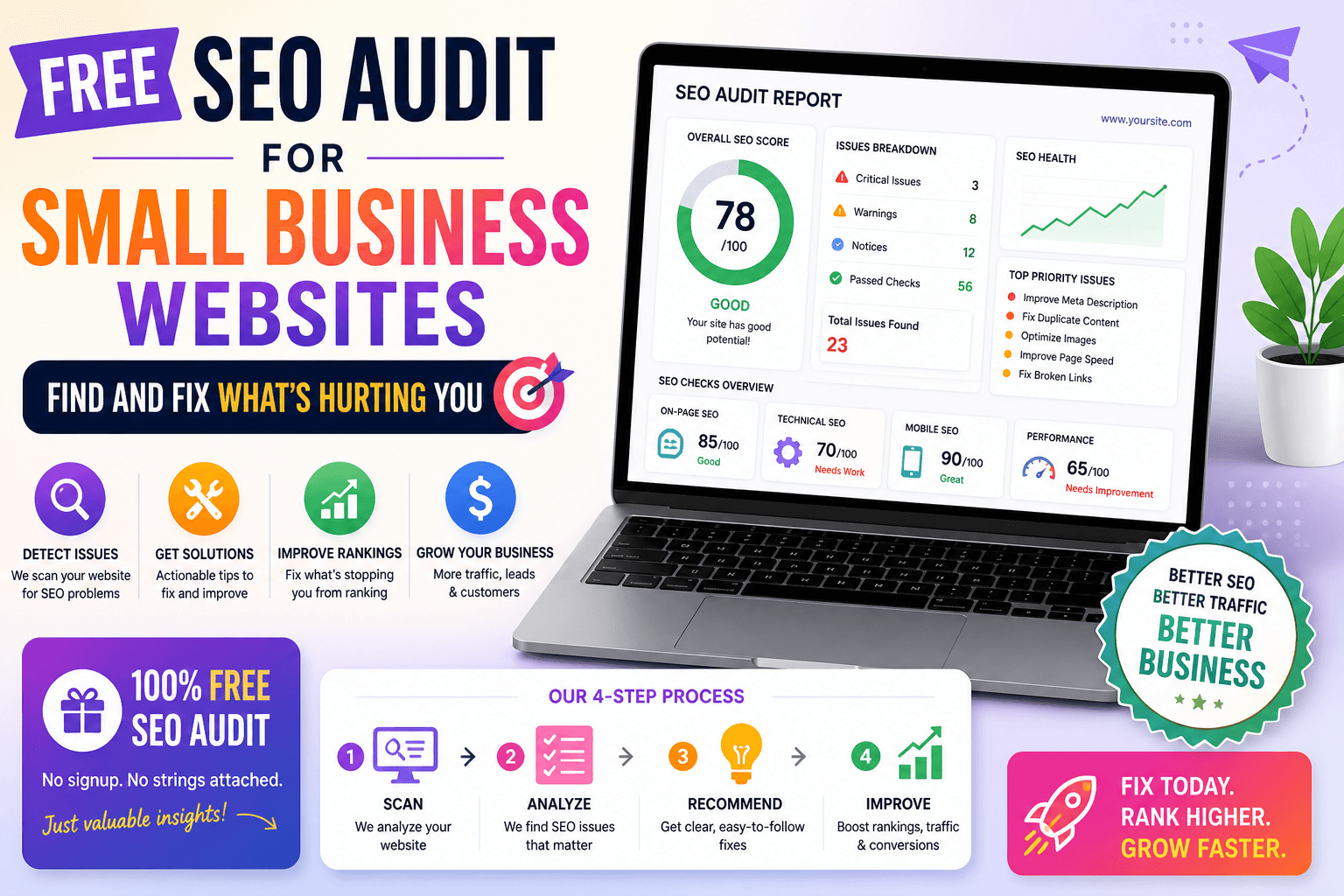
- Run a free SEO audit on your homepage, complete 18-point diagnosis in 10 seconds
- Confirm your site loads on HTTPS, 'Not Secure' in the browser bar suppresses rankings
- Submit your sitemap at GSC → Sitemaps if you haven't done it yet
- Request indexing on your 5 most important pages via the URL Inspection tool in GSC
What Not Ranking Is Actually Costing You
When your website is not appearing in search results, you lose access to the vast majority of organic traffic before a single potential customer sees your name. The first 3 results capture over 60% of all clicks for a given query. Position 6–10 receives under 5% combined. Page 2 is effectively invisible, less than 1% of users ever scroll past page one.
If your website has no traffic from Google despite months of work, or if your site is not indexed on Google at all, the cause is almost never bad luck or insufficient time. The most common reasons websites do not rank are structural and entirely diagnosable: indexation failures, wrong keyword targeting, missing on-page signals, thin or intent-mismatched content, zero backlinks, poor internal linking, and technical barriers actively preventing Google from understanding your pages.
These problems do not resolve themselves over time, they compound. Start by running a free on-page SEO audit, it diagnoses 18 technical and on-page ranking signals on your specific pages in under 10 seconds and tells you precisely where to start.
10 Real Reasons Your Website Is Not Ranking on Google
Each reason below is independently capable of blocking your rankings, even when everything else is correct.
1. Google Has Not Indexed Your Pages, Critical Impact
What This Means
An unindexed page cannot rank, full stop. If Google has not added your page to its index, it does not exist for search purposes regardless of how well-optimized it is. WordPress sites frequently have 'Discourage search engines from indexing this site' left active after launch. A single noindex meta tag or a misconfigured robots.txt silently removes pages from Google's index with no warning. New sites can also go weeks uncrawled if no external sites link to them and no sitemap has been submitted.
How to Check
Type site:yourdomain.com in Google. If you have 50 pages but only 5 appear, your indexation is critically broken. For page-level detail, open Google Search Console → Index → Pages → Excluded tab. Use the URL Inspection tool on your homepage, if it shows 'URL is not on Google,' that page is completely invisible to all search queries.
Fix
Find and remove any noindex meta tag from your page's HTML head. In WordPress, go to Settings → Reading and uncheck 'Discourage search engines from indexing this site.' Verify robots.txt at yourdomain.com/robots.txt and confirm it does not contain Disallow: /. Submit your sitemap in Google Search Console → Sitemaps, use the free sitemap generator to create one instantly. Use URL Inspection → 'Request Indexing' on every important page.
Why is my website not showing in Google search?
Your page is likely not indexed. Search site:yourdomain.com in Google, if it doesn't appear, it's invisible to all queries. Open Google Search Console, check the Error and Excluded tabs, and use the URL Inspection tool to request indexing on your most important pages.
2. You Are Targeting Keywords That Are Too Competitive, High Impact
What This Means
A new website targeting 'SEO tools', a keyword dominated by Ahrefs, SEMrush, and Moz with years of accumulated authority, will never reach page one regardless of content quality. Every keyword has a competition level set by the authority of sites currently ranking. If your domain is new or young, you are fighting against sites with thousands of backlinks, strong brand signals, and deep content archives. The answer is not to work harder, it is to compete where you can win.
How to Check
Search your target keyword in Google and study the top 5 results. If they all come from large, well-known brands, the competition is beyond what a new domain can overcome. Look at how long the top-ranking pages are and how many external sites link to them. The gap between their authority and yours shows exactly what you are competing against.
Fix
Add specificity to your keywords: a geographic location ('plumber Austin TX'), an audience qualifier ('for beginners', 'for small business'), or an intent qualifier ('free', 'affordable', 'DIY'). Use Google's autocomplete and the 'People Also Ask' boxes to find longer-tail variations with lower competition. Target queries where page-one results are thin, outdated, or from low-authority sites, those gaps are where you can rank now.
Why does my website have no traffic from Google? If indexed but with zero traffic: you're targeting keywords nobody searches for, ranking below position 10 where almost no clicks go, or your title tag isn't compelling enough to earn clicks. Open GSC → Performance → Queries to see exactly which keywords trigger impressions.
3. Critical On-Page SEO Signals Are Missing, High Impact
What This Means
If your title tag reads 'Home | Business Name' and your H1 does not contain the target keyword, Google has no clear signal about which search queries your page should match. Every page needs a unique keyword-focused title under 60 characters, exactly one H1 containing the keyword, a meta description that reinforces the topic and drives click-through, keyword usage in the first paragraph, and descriptive alt text on every image. These are the primary on-page signals Google uses to categorize and rank pages.
How to Check
Right-click your page and select View Page Source. Search for <title>, confirm it contains your target keyword within the first 60 characters. Search for <h1>, confirm exactly one exists containing the keyword. Or run the free SEO audit on your URL, it checks all 18 on-page signals in under 10 seconds and flags every missing or misconfigured element automatically.
Fix
Rewrite your title tag to lead with the target keyword, keeping the total under 60 characters. Write one H1 per page that explicitly contains the keyword, delete any duplicate H1 tags. Add a meta description under 155 characters that makes users want to click. Add the keyword to the first 100 words of your body content and to at least one subheading. Use the free meta tags generator to produce correctly structured tags instantly.
4. Your Content Is Too Thin to Compete, High Impact
What This Means
Google's E-E-A-T framework (Experience, Expertise, Authoritativeness, Trustworthiness) means shallow, low-effort pages rarely rank for competitive queries. A 300-word page on a topic where top competitors all publish 1,500–2,500 words will almost always lose, thin content signals a lack of genuine expertise. Worse, thin content does not just rank poorly on its own: Google evaluates domain-level content quality, and a site full of thin pages can see all its pages suppressed as a result.
How to Check
Search your target keyword and open the top 3 ranking pages. Estimate their word count and list the subtopics they cover. Are they answering specific questions your page ignores? Are they using real examples, data, or step-by-step instructions? If they cover 8 angles of a topic and your page covers 2, you have a significant content gap that explains why your site is not appearing in search results.
Fix
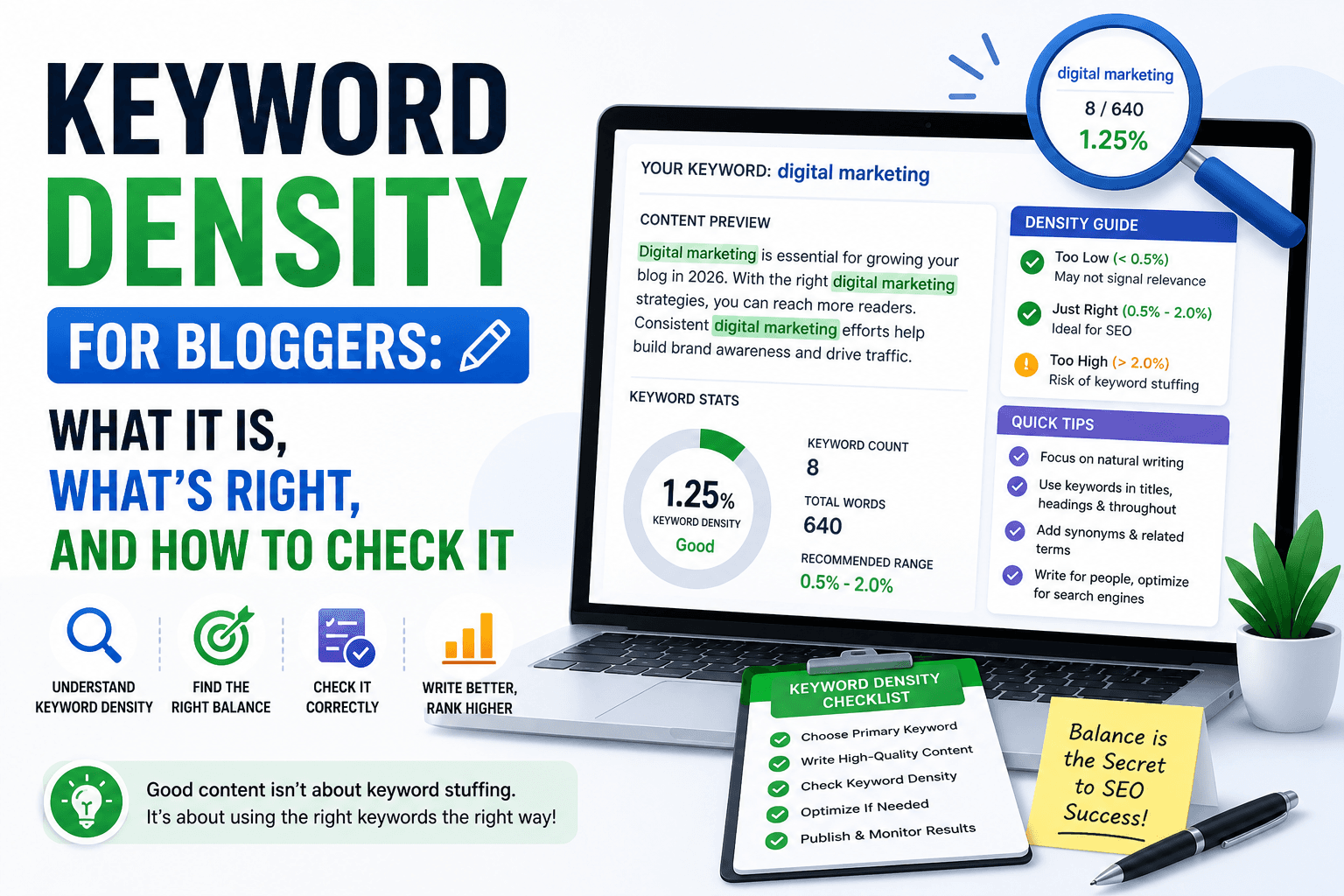
Expand your content by writing dedicated sections covering every subtopic the top-ranking pages address. Add a FAQ section answering common reader questions. Use real examples, data, and step-by-step instructions. Use the keyword density checker to verify your target keyword appears naturally at 1–2% throughout the expanded content. Add depth, not padding. Every new section should answer a question a real reader would have.
How do I fix my website not ranking on Google? Run a free SEO audit first to diagnose the exact issues. Fix in sequence: confirm indexing → resolve crawl errors → fix title tag and H1 → match search intent → expand thin content. Each step depends on the one before, don't skip ahead.
5. You Have No Backlinks or Established Domain Authority, Medium Impact
What This Means
Backlinks are external votes of confidence from other websites that signal to Google your content is worth recommending. A site with zero backlinks is unvouched for, Google has no external evidence that your content is trustworthy. For competitive queries, even technically perfect on-page SEO cannot overcome an authority gap built by competitors over years of link acquisition. This is the single hardest ranking factor to shortcut, and it requires a consistent long-term effort.
How to Check
Search your domain in a free backlink checker (Ahrefs Site Explorer free tier, Moz Link Explorer, or Ubersuggest). If you have fewer than 10 referring domains, your site has almost no external authority. Compare your referring domain count against the top-ranking competitor for your keyword, that gap represents the authority deficit you are competing against.
Fix
Start with zero-cost citations: claim your Google Business Profile, submit to Bing Places, and add your site to Yelp and relevant industry directories. For content sites, create one genuinely useful free resource, an original data study, a free tool, or a comprehensive guide, and promote it to relevant blogs and publications. For e-commerce, contact manufacturers and suppliers, many maintain authorized retailer pages that include links.
6. Technical Issues Are Suppressing Your Visibility, Medium Impact
What This Means
Slow page speed, duplicate content, broken canonical tags, and missing HTTPS all suppress rankings without triggering any visible error. Google's Core Web Vitals are direct ranking signals: Largest Contentful Paint (LCP) should be under 2.5 seconds; Cumulative Layout Shift (CLS) under 0.1; Interaction to Next Paint (INP) under 200ms. Duplicate content from multiple URL variants (www vs non-www, HTTP vs HTTPS, trailing slash vs none) splits your ranking authority across competing versions of the same page.
How to Check
Run your URL through Google PageSpeed Insights and check your Core Web Vitals scores. Check the browser address bar for 'Not Secure', this indicates HTTP rather than HTTPS. Run the free SEO audit on your page, it automatically checks for missing canonical tags, duplicate URL variants, absent HTTPS, and missing structured data in one pass.
Fix
Enable HTTPS through your hosting provider, most offer free SSL certificates via Let's Encrypt. Add canonical tags to every page using Yoast or RankMath in WordPress, or manually in the HTML head. Compress all images, oversized images are the most common cause of slow LCP scores. Remove unused plugins and scripts that delay page loading. Use the robots.txt generator to verify you aren't accidentally blocking Google.
How long until a website ranks on Google? Low-competition long-tail keywords: 3–6 months with correct on-page SEO. Competitive queries: 12–24 months. Fixing on-page issues on already-indexed pages can show movement in 2–8 weeks, this is consistently the fastest ranking improvement available.
7. Your Content Does Not Match Search Intent, High Impact
What This Means
Google analyses which type of result satisfies the most users for a given query, then consistently ranks that format above everything else. Search intent falls into four categories: informational (user wants to learn), navigational (user wants a specific site), commercial (user wants to compare), and transactional (user is ready to act). Publishing a sales page for a query where Google knows users want a tutorial, or a blog post for a query where they want a comparison tool, kills rankings regardless of content quality or on-page optimization.
How to Check
Search your exact target keyword and study the top 5 results. What format are they, blog posts, product pages, comparison listicles, tools, videos? What content length do they use? If the top 5 are all listicles and your page is a long-form narrative guide, you have a format mismatch. The format Google consistently ranks is a direct signal of what users actually want for that query.
Fix
Identify the dominant content format Google consistently ranks for your keyword and restructure your page to match it exactly. If Google ranks comparison listicles, reformat your content as a numbered list with clear headings. If Google ranks short tool pages, compress your content to match. Intent alignment must come first, no amount of on-page optimization can overcome a fundamental format mismatch with dominant search intent.
8. Poor Internal Linking Starves Important Pages of Authority, Medium Impact
What This Means
Internal links pass PageRank, Google's core authority signal, from one page to another within your website. Your homepage almost certainly earns more backlinks than any other page, but if that authority is not distributed to important service, product, or landing pages through internal links, those pages compete with almost zero authority. A page buried 4–5 clicks deep from the homepage with no internal links pointing to it is effectively invisible from a PageRank standpoint regardless of how well-optimized it is.
How to Check
From your homepage, navigate to your most important pages by clicking through your site naturally. Count how many clicks it takes to reach each one. If it takes more than 3 clicks, that page is receiving minimal authority. Also check your existing internal link anchor text, if you are linking with 'click here' or 'read more' instead of descriptive keyword-containing text, you are wasting the link signal.
Fix
Add direct links to your most important pages from your homepage or main navigation. Use descriptive anchor text that includes or closely relates to the target keyword of the destination page, for example, 'free SEO audit tool' instead of 'click here.' Review your most-visited existing pages and add contextual links pointing to related pages you want to rank. No important page should be more than 2–3 clicks from the homepage.
Why is Google not indexing my website pages? Most common causes: a noindex meta tag in the HTML head, a robots.txt rule blocking Googlebot, the page returning a non-200 HTTP status code, or no internal links pointing to the page. Open Google Search Console's URL Inspection tool and paste the page URL, it shows the exact reason.
9. Your Website Is Too New, The Google Sandbox Effect, Medium Impact
What This Means
Google applies a trust period to new domains, widely observed as a sandbox effect, where new websites typically take 3–6 months to rank even for low-competition queries, regardless of on-page quality or content depth. This is not a penalty; it is Google's mechanism for preventing newly created sites from gaming results before establishing legitimate trust signals. The sandbox period is real, but it does not mean you should wait, it means you should use the time to build a foundation that is ready to rank the moment trust is established.
How to Check
Check when your domain was registered. If it is under 6 months old, the sandbox effect is a likely contributor. In Google Search Console → Performance, if you see very few impressions or zero clicks for low-competition keywords you have well-optimized pages for, this is consistent with the sandbox effect rather than on-page problems.
Fix
Use the trust-building period productively: publish high-quality content consistently (2–4 posts per month minimum), fix all on-page SEO issues so your pages are optimized and ready the moment trust is established, submit to Google Business Profile and local directories for early citation signals, and earn your first natural backlinks through genuine outreach. The worst approach is aggressive purchased link building, it frequently triggers spam signals that extend the waiting period.
10. A Google Penalty Is Actively Suppressing Your Site, Critical Impact
What This Means
Google penalises sites in two ways: manually (a human reviewer flags a specific violation, visible immediately in Search Console under Manual Actions) and algorithmically (automated systems like the Helpful Content Update, Panda, or Penguin apply suppression without notification). Both types cause site-wide ranking drops. If your site previously ranked well and suddenly dropped across all pages simultaneously, and your website is not appearing in search results for terms it previously ranked for, a penalty is the most likely cause.
How to Check
Open Google Search Console → Manual Actions in the left sidebar. Any active manual penalty is listed here with the exact violation type. For algorithmic penalties, compare the date your traffic dropped sharply against Google's official algorithm update timeline. A sudden, sitewide drop is the clearest distinguishing signal from normal ranking fluctuation.
Fix
For manual penalties: fix the specific violation listed in GSC (remove thin content, disavow unnatural links via the Disavow Tool, eliminate keyword stuffing), then file a reconsideration request through Search Console. For algorithmic penalties: audit your entire site's content quality, remove or substantially improve thin pages, and clean up your backlink profile. Recovery typically takes 1–3 months after the root causes are genuinely resolved.
SEO Fix by Website Type
The root cause of a site not showing in search differs depending on what type of website you run. Here is what breaks rankings for each type, and the specific fixes that work.
For Bloggers
Common problem: Most blogs fail to rank because every post targets high-competition head keywords ('best SEO tips'), content averages 300–500 words where top competitors publish 1,500+, WordPress category archives duplicate post excerpts across hundreds of thin URLs consuming crawl budget, and there are no internal links connecting related posts.
What to fix:
- Target long-tail keywords with intent: 'SEO tips for food bloggers 2025' beats 'SEO tips', use the keyword density checker to optimize each post
- Write every post to at least 1,000 words, cover every angle a real reader would want answered
- Set WordPress category and tag archives to noindex to stop crawl budget waste on thin duplicate pages
- Build internal link clusters: every post should link to 2–3 related posts using keyword-rich anchor text
- Add a visible author bio with real credentials on every post to establish E-E-A-T signals Google looks for
- Run an SEO audit on your 5 highest-traffic posts and fix every critical issue, these pages already have authority
For eCommerce
Common problem: Online stores get wiped by faceted navigation creating thousands of thin filter URLs (/shoes?color=red&size=10), auto-generated product titles from SKUs, blank meta descriptions, no unique product copy, and crawl budget consumed entirely by filter combinations instead of revenue-generating product pages.
What to fix:
- Write unique title tags and meta descriptions for your top 20 revenue-generating products and categories first
- Add canonical tags to all faceted navigation URLs pointing to the base category page, this stops authority dilution
- Generate and submit a clean product sitemap using the sitemap generator, submit it in GSC immediately
- Write at least 150 words of unique, keyword-rich copy on every key product page, don't copy manufacturer descriptions
- Link from high-traffic category pages to best-selling products using keyword-rich anchor text
- Run an SEO audit on your top 5 category pages, fix every on-page issue before working on product pages
For Local Business
Common problem: Local businesses are invisible because their Google Business Profile is unclaimed or incomplete, they have no city+service landing pages, the website says 'We serve the entire region' instead of naming specific locations, and they have zero citations in local business directories.
What to fix:
- Claim and fully complete your Google Business Profile, add services, hours, photos, and a keyword-rich business description with your city
- Create dedicated landing pages for each service + location (e.g. 'Emergency Plumber Austin TX', 'Dentist Dallas TX')
- Add your NAP (Name, Address, Phone) consistently to every page header and footer, inconsistency kills local rankings
- Submit your business to Yelp, Bing Places, and at least 10 relevant local and industry directories
- Actively collect Google reviews, 5+ reviews directly improve local pack visibility for your city+service keywords
- Use the meta tags generator to write location-optimized title tags for every city and service page
How to Check Why Your Website Is Not Ranking (GSC Walkthrough)
Google Search Console is the primary diagnostic tool for understanding why your site is not showing on Google. It is free, directly provided by Google, and gives you data that no third-party SEO tool can match.
If you have not set up Google Search Console yet, go to search.google.com/search-console and verify your domain. Verification is free and takes under 5 minutes.
Step 1, Run site:yourdomain.com in Google first
Open Google and type site:yourdomain.com. The number of results shown is Google's rough count of your indexed pages. If you have 50 pages on your site but only 6 results appear, Google is not indexing the majority of your content. This single check tells you immediately whether you have an indexation problem.
Step 2, Open Google Search Console → Index → Pages
Four tabs are available: Error (pages that failed to index and why), Valid with warnings, Valid (successfully indexed), and Excluded (intentionally or accidentally removed). Click the Error tab first, these are your highest-priority problems. Then review Excluded, this often reveals noindex directives or robots.txt blocks you were not aware of.
Step 3, Inspect individual pages with the URL Inspection tool
Paste any important page URL into the search bar at the top of Google Search Console. The URL Inspection tool shows the exact indexing status of that specific page: whether it is indexed, the last crawl date, whether Googlebot encountered a noindex directive or robots.txt block, and the HTTP response code. If the page shows 'URL is not on Google,' click 'Request Indexing' to prompt an immediate recrawl.
Step 4, Submit your XML sitemap
Go to Sitemaps in the GSC left sidebar and enter your sitemap URL (typically yourdomain.com/sitemap.xml), then click Submit. Your sitemap tells Google exactly which pages exist on your site. Without a submitted sitemap, Google can only discover pages through links. Use the sitemap generator if you don't have one yet.
Step 5, Check for keyword mismatches in GSC Performance
Open Performance → Search Results in the GSC left sidebar. Click the Queries tab, this shows exactly which keywords your pages actually appear for in Google's results. Compare these against the keywords you intended to target. If Google is surfacing your page for terms you never targeted, your title tag, H1, and opening paragraph are not sending a clear enough topical signal.
Step 6, Use the free SEO audit for on-page and technical signals
Google Search Console tells you about crawling and indexing, but it does not diagnose on-page issues like missing title tags, absent canonical URLs, misconfigured H1 headings, or missing structured data. The free SEO audit checks all 18 on-page and technical ranking factors in under 10 seconds and returns a scored, prioritized report.
Crawl Error Types and How to Fix Each One
When Google encounters an error while crawling your pages, it records it in GSC under Index → Pages → Error tab. Unresolved crawl errors are one of the most common reasons why a website is not indexed on Google.
404 Not Found Google attempted to visit the page but it does not exist. Fix: if the page should exist, recreate it or set a 301 redirect from the old URL to the correct destination. Never leave 404s on URLs that previously had backlinks pointing to them, you lose that link equity permanently.
Server Error (5xx) Your server returned an error when Googlebot tried to access the page. Fix: contact your hosting provider if these appear consistently, persistent 5xx errors cause Google to stop crawling the affected pages entirely.
Redirect Chain or Loop A redirect chain (A → B → C → D) wastes crawl budget and bleeds link equity at each hop. A redirect loop (A → B → A) prevents Google from ever reaching the final page. Fix: collapse all redirect chains to a single direct 301 redirect pointing straight to the final destination URL.
Blocked by robots.txt
A rule in your robots.txt file is preventing Googlebot from accessing the page. Fix: open yourdomain.com/robots.txt and check for Disallow: / which blocks everything. Remove any rules that are blocking pages you want indexed. Use the robots.txt generator to build a correct, safe robots.txt file.
Step-by-Step Plan to Fix Your Rankings
Follow these steps in sequence. Each step builds on the one before, do not jump to step 4 until steps 1–3 are confirmed complete.
Step 1, Run a Free SEO Audit, Diagnose Before You Fix
The free SEO audit checks 18 on-page and technical factors, including noindex directives, missing title tags, absent canonical URLs, no HTTPS, and missing structured data, and returns a scored, prioritized report in under 10 seconds. Run it on your homepage and top 5 most important pages before touching anything else.
Step 2, Confirm Indexing
Search site:yourdomain.com in Google and compare the result count to your actual page count. Open GSC → Index → Pages and review the Error and Excluded tabs. Use the URL Inspection tool on your most important pages to confirm each one shows 'URL is on Google.' If any important page is not indexed, use 'Request Indexing' and submit your XML sitemap.
Step 3, Fix Every Crawl Error in Google Search Console
Navigate to GSC → Index → Pages → Error tab and resolve every error listed. 404 errors on important pages need 301 redirects to the correct URL or the page recreated. Server errors (5xx) require investigation of your hosting environment. Redirect chains should be collapsed to direct single-hop 301 redirects.
Step 4, Fix Every On-Page SEO Signal on Important Pages
Write a unique keyword-focused title tag under 60 characters for every important page, lead with the keyword, not your brand name. Ensure exactly one H1 per page containing the target keyword. Add a compelling meta description under 155 characters. Use the free meta tags generator to build correctly structured tags instantly.
Step 5, Verify Your Content Matches the Search Intent for Each Keyword
Before rewriting any content, search your target keyword and study the top 5 results. Identify the dominant content format, listicle, guide, product page, tool, video. Your page must match that format before it can compete on quality. Intent alignment consistently matters more than content quality, a perfectly written page in the wrong format will not rank.
Step 6, Expand Content Depth on Every Thin Page
For every important page ranking below position 10, open the top 3 ranking pages for that keyword and list every subtopic they cover that your page does not. Write those missing sections. Add a FAQ section answering common reader questions. Use the keyword density checker to confirm your keyword appears at 1–2% throughout.
Step 7, Build Internal Links to Every Important Page
Link to every important page from your homepage or a top-traffic page using descriptive anchor text containing the destination page's target keyword. Confirm no important page is more than 2–3 clicks from the homepage. Replace all 'click here' and 'read more' anchor text with keyword-rich descriptions.
Step 8, Build Your First External Authority Signals
For local businesses: claim and fully complete your Google Business Profile today. Submit to Yelp, Bing Places, and industry-specific directories. For content sites: create one genuinely useful free resource and promote it to relevant publications. For e-commerce: pursue supplier pages, manufacturer authorized dealer listings, and product review placements.
Fix Your Website in 10 Minutes
You cannot fully resolve every ranking issue in 10 minutes, but you can diagnose the exact problem and fix the highest-impact issues right now.
- (30 sec) Paste your homepage URL into the free SEO audit tool, get a complete 18-point diagnosis instantly
- (1 min) Search
site:yourdomain.comin Google, count results vs. your actual page count. A major gap = indexation problem - (1 min) Open Google Search Console → Index → Pages → Error tab, write down every error listed
- (1 min) Visit
yourdomain.com/robots.txtin your browser, confirm there is noDisallow: /line - (1 min) Right-click your homepage → View Page Source → Ctrl+F for 'noindex', if found in the head, remove it immediately
- (2 min) Rewrite your homepage title tag to lead with your exact target keyword, under 60 characters, use the meta tags generator
- (1 min) Right-click → Inspect → search for H1, confirm exactly one H1 exists and it contains your target keyword
- (1 min) Go to GSC → Sitemaps and submit
yourdomain.com/sitemap.xmlif not done, use the sitemap generator to create one - (30 sec) Search your business name in Google, if your Google Business Profile is unclaimed, claiming it is the single highest-impact free fix for local businesses
Key Fixes Checklist
Run this checklist on your homepage and top 5 most important pages. The free SEO audit tool automatically identifies which items need fixing for any URL, run it first, then confirm every issue is resolved:
- Remove all noindex meta tags from important pages
- Fix every crawl error listed in Google Search Console → Index → Pages → Error tab
- Rewrite title tags to lead with the target keyword, total under 60 characters
- Confirm exactly one H1 per page, it must contain the target keyword
- Add a meta description under 155 characters to every page that is missing one
- Enable HTTPS, contact your hosting provider if 'Not Secure' shows in the browser bar
- Add canonical tags to every page to prevent duplicate content from URL variants
- Expand any page under 800 words on a topic where top competitors publish 1,500+
- Link to every important page from the homepage using keyword-rich anchor text
- Submit your XML sitemap in Google Search Console → Sitemaps
- Request indexing via URL Inspection tool on all important unindexed pages
- Claim and complete your Google Business Profile, highest-impact free fix for local businesses
What Google Actually Measures
Every Google ranking signal exists to measure one of three things: relevance (does this page match what the user is looking for?), authority (do other trusted sources vouch for this content?), or trustworthiness (is this site safe and credible?).
Relevance, Google reads your title tag first. If it reads "Home | Business Name," Google cannot determine which queries your page should match. After the title tag, Google reads the H1, first paragraph, subheadings, image alt text, and body content, all of which must reinforce the same topical focus. Use the keyword density checker to verify your keyword frequency without triggering keyword stuffing filters.
Search Intent, Relevance is not enough on its own. Your page must also match the dominant intent behind the query. Search 'best accounting software' in Google: the results are almost entirely comparison listicles, not individual product pages. A SaaS company publishing only their own product page for this query will not rank, because Google knows users want a comparison. Always search your exact target keyword and analyse the format and length of the top 5 results. Match that format before competing on depth and quality.
Authority, Google measures authority primarily through backlinks. A new site with zero backlinks is unvouched for. For competitive queries, even technically perfect on-page SEO cannot overcome a domain authority gap. For local businesses, a fully completed Google Business Profile is the highest-impact free authority signal available, often enough to appear in the local map pack without traditional link building.
Technical SEO, Even a page with perfect on-page SEO and strong backlinks can fail to rank if technical issues prevent Google from accessing, rendering, or correctly indexing it. The most destructive technical problems: accidental noindex directives, duplicate content from multiple URL variants, and slow page speed penalised through Core Web Vitals scoring. The free SEO audit checks for all of these in a single pass.
E-E-A-T, Google's quality guidelines describe Experience, Expertise, Authoritativeness, and Trustworthiness. Practically, this means content must demonstrate real knowledge, be written by someone with genuine expertise, and the site must signal trustworthiness through HTTPS, accurate contact information, and professional presentation.
Free Tools to Diagnose and Fix Every Ranking Problem
Every tool below is free. No account required. No limits.
- SEO Audit Tool, 18 on-page and technical factors diagnosed in 10 seconds
- Meta Tags Generator, build keyword-optimized title and description tags
- Keyword Density Checker, verify keyword frequency in your content
- Sitemap Generator, create and download an XML sitemap instantly
- Readability Checker, improve content clarity and reduce bounce rate
- Robots.txt Generator, build a valid robots.txt that doesn't block Google
FAQ
Why is my website not showing up on Google at all?
If your website does not appear in a site:yourdomain.com search, it is not indexed by Google. The most common causes: a noindex meta tag left active from development, a robots.txt file blocking Googlebot, the site was just launched and has not been crawled yet, or server errors preventing Google from accessing the pages. Open Google Search Console → Index → Pages and check the Error and Excluded tabs. Use the URL Inspection tool on your homepage to see the exact issue. Run a free SEO audit to automatically detect any noindex directives on your live pages.
Why does my website have no traffic from Google even though it is indexed? If your pages are indexed but you have zero or near-zero traffic, the likely causes are: targeting keywords with extremely low or zero monthly search volume, pages ranking on page 2 or beyond (positions 11+) where almost no clicks are generated, target keywords too competitive for your current domain authority, title tags not compelling enough to earn clicks, or pages appearing for completely different keywords than intended. Open Google Search Console → Performance → Queries to see exactly which keywords trigger impressions and at what positions.
How long does it take for a website to rank on Google? A new website typically takes 3–6 months to rank for low-competition long-tail keywords with correct on-page SEO in place. High-competition queries can take 12–24 months. On-page fixes on already-indexed pages, fixing a missing title tag, correcting H1 structure, adding a canonical URL, can show ranking movement within 2–8 weeks after Google recrawls the corrected page. The fastest gains always come from fixing on-page issues on existing indexed pages, not from publishing new content on a domain with no established authority.
How do I check if my website is indexed by Google?
Type site:yourdomain.com in Google. The number of results is a rough count of your indexed pages. For detailed reporting, open Google Search Console → Index → Pages. The URL Inspection tool shows the exact indexing status of any specific page, whether it is indexed, the last crawl date, whether Googlebot encountered a noindex directive, and whether you can request a recrawl.
What is the fastest way to fix my Google rankings? The fastest path to ranking improvement is fixing on-page issues on your most important already-indexed pages. Run a free SEO audit on your homepage and top 5 pages. Fix all critical-impact issues first: missing title tags, absent meta descriptions, misconfigured H1 headings, missing canonical tags, accidental noindex directives. Then use Google Search Console to request recrawling of each fixed page. These changes frequently show ranking movement within 2–4 weeks, far faster than publishing new content or building backlinks, because you are removing active suppression signals from pages that are otherwise ready to rank.
Why is Google not indexing my website pages? The most common reasons: a noindex meta tag in the page's HTML head, a robots.txt rule blocking Googlebot from the page or directory, the page returning a non-200 HTTP status code (404, 301, 500), no internal links pointing to the page so Googlebot can't discover it, or a duplicate content signal causing Google to index a different version. Open Google Search Console's URL Inspection tool and paste the page URL, it shows the exact reason the page is not indexed and what to fix.
Why did my website rankings suddenly drop? A sudden, broad drop across many pages simultaneously signals one of four things: a Google algorithm update (cross-reference the drop date against Google's public update history), a manual penalty (check Search Console → Manual Actions immediately), an accidental technical change such as a noindex tag added during a site update or a sitemap file blocked in robots.txt, or a significant loss of backlinks from a major linking domain. Run a free SEO audit on the affected pages and check Search Console for manual actions or new crawl errors near the time of the drop.